Introduction
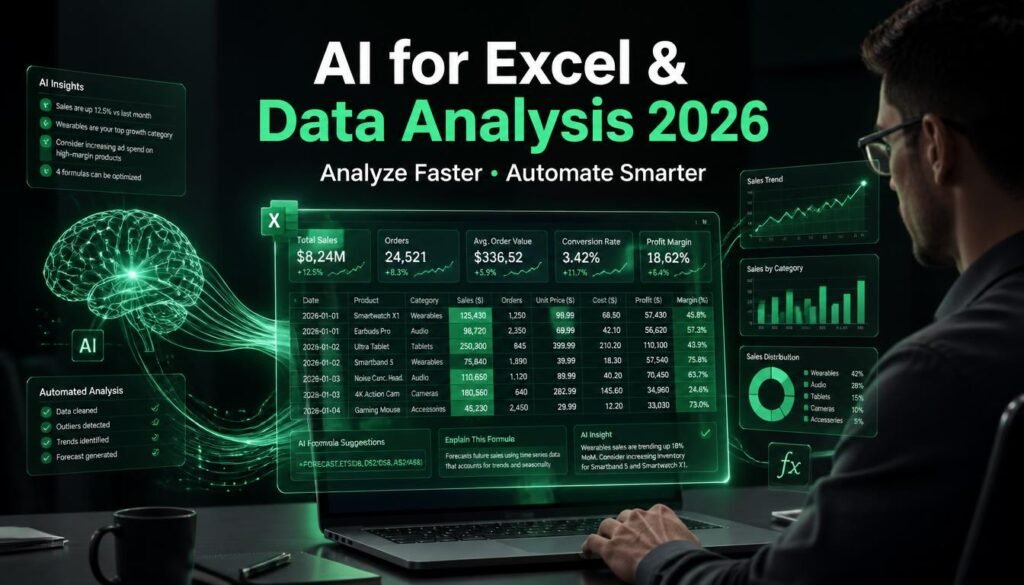
Working with Excel no longer has to mean memorizing complicated formulas or manually checking thousands of rows. In 2026, AI tools can help you create formulas, clean data, identify trends, build charts, and summarize spreadsheets much faster.
But AI is most useful when you give it a clear task. Instead of simply asking, “Analyze my spreadsheet,” describe exactly what you want to find, provide clean data, and verify the results afterward.
This guide explains how to use AI with Excel and data analysis in 2026, covering beginner-friendly formulas, data cleaning, analysis, charts, automation, and practical AI prompts.
What Can AI Do With Excel?
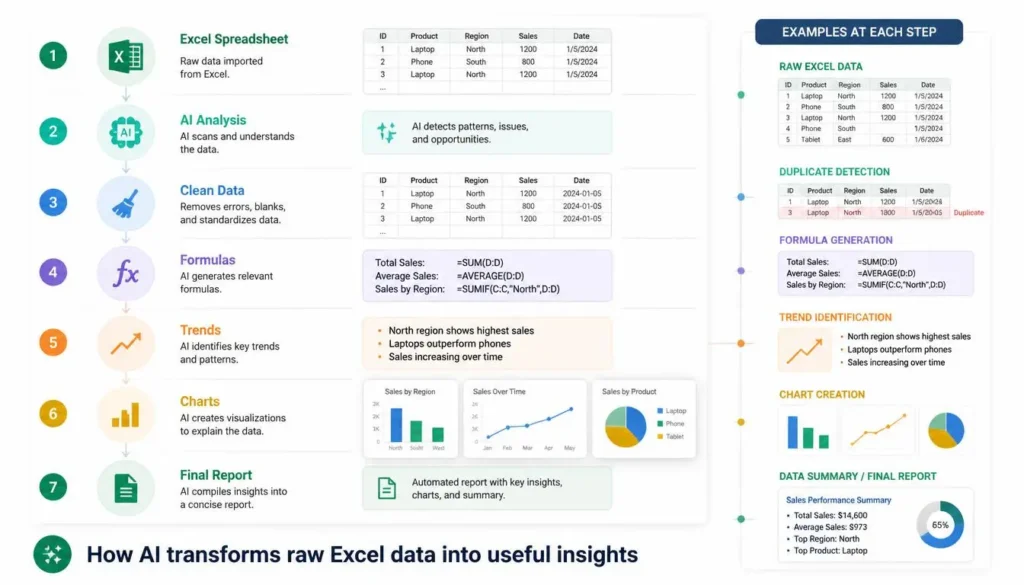
AI can assist with many common spreadsheet tasks:
| Task | How AI Helps |
|---|---|
| Formulas | Creates and explains formulas |
| Data Cleaning | Finds duplicates and missing values |
| Analysis | Identifies statistics and patterns |
| Trends | Detects growth, declines, and unusual changes |
| Charts | Suggests suitable visualizations |
| Reports | Converts findings into summaries |
| Automation | Helps with repetitive workflows |
The biggest benefit is that you can describe what you want in plain English instead of remembering every Excel function.
Best AI Tools for Excel and Data Analysis
Microsoft Copilot for Excel
Best for: Users who work directly inside Excel.
Microsoft Copilot can help create formulas, analyze tables, identify trends, generate charts, and work with PivotTables. Its biggest advantage is that the AI experience is integrated into Excel.
Best for: Beginners and professionals who want AI directly inside their spreadsheet workflow.
ChatGPT
Best for: General spreadsheet analysis and learning Excel.
ChatGPT can help explain formulas, analyze uploaded spreadsheet data, identify patterns, create tables, and assist with charts and reports.
Its flexibility makes it useful for beginners who want to understand why a formula or analysis works instead of simply receiving an answer.
Google Gemini
Best for: Google Sheets users.
Gemini can help generate formulas, summarize information, categorize data, and analyze spreadsheet content. It is particularly convenient for people already using Google Workspace.
Claude for Excel
Best for: Complex workbooks and professional analysis.
Claude can assist with complicated spreadsheet tasks, including understanding formulas, analyzing multiple sheets, and troubleshooting workbook problems.
It can be especially useful when working with large or complicated analytical spreadsheets.
How to Use AI to Create Excel Formulas
One of the easiest ways to use AI with Excel is formula creation.
Suppose B2 contains sales and C2 contains expenses. Instead of searching for the correct formula, ask:
“Create an Excel formula that calculates profit by subtracting expenses in C2 from sales in B2.”
The result would be:
=B2-C2
You can also ask AI to calculate percentage changes:
“Create a formula to calculate percentage change from A2 to B2.”
A suitable formula is:
=(B2-A2)/A2
For more complicated formulas, ask AI to explain each part step by step. This is particularly useful for beginners learning XLOOKUP, IF statements, SUMIFS, and dynamic formulas.
Always test an AI-generated formula with a simple example before applying it across an important workbook.
How to Clean Excel Data With AI
Poor-quality data can lead to poor analysis. AI can help identify:
- Duplicate records
- Missing values
- Spelling variations
- Incorrect date formats
- Inconsistent capitalization
- Unusual numbers
- Invalid entries
A safer workflow is:
- Create a backup of your spreadsheet.
- Organize your data into a proper table.
- Ask AI to identify potential problems.
- Review the suggestions.
- Correct the data.
- Run your analysis again.
Instead of saying “Clean this spreadsheet,” use a specific prompt:
“Find possible duplicate customers and inconsistent spellings. List the suspicious records before suggesting changes.”
This keeps you in control of the final corrections.
How to Analyze Excel Data With AI
AI can make large datasets easier to understand.
First, use clear column names and keep each record on its own row. Then tell AI exactly what you want to discover.
For example:
“Analyze monthly sales and identify the products with the strongest growth, the biggest declines, and any unusual changes.”
You can ask questions such as:
- Which products generated the most revenue?
- Which region performed best?
- What changed compared with last month?
- Are there unusual values?
- Which category is declining?
- What is the average order value?
If AI identifies an important trend, ask it to explain which columns or calculations support the conclusion. Then verify the result using Excel formulas, PivotTables, or another reliable method.
How to Create Charts With AI
AI can also help you choose the right visualization.
- Bar chart: Compare products or regions.
- Line chart: Show changes over time.
- Scatter plot: Compare two numerical variables.
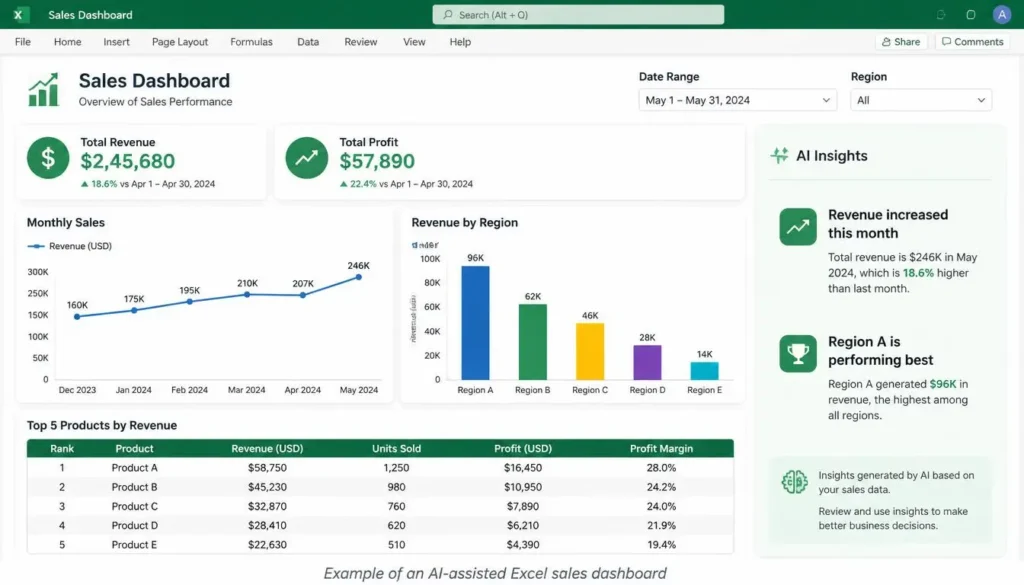
- KPI cards: Highlight revenue, profit, or growth.
- Pie chart: Show simple proportions.
For example, instead of asking:
“Make a chart.”
Try:
“Create a line chart showing monthly revenue from January to December, with months on the X-axis and revenue on the Y-axis.”
A specific instruction produces a much more useful result.
Advanced Uses of AI With Excel
Once you understand the basics, AI can help with more advanced spreadsheet work.
Automation
AI can assist with repetitive tasks such as formatting reports, categorizing information, and preparing monthly summaries.
VBA and Office Scripts
You can ask AI to create or explain VBA, Office Scripts, or Python code for spreadsheet automation. Always test generated code on a copy of your workbook first.
Forecasting
AI can help analyze historical information and explore possible future trends. However, forecasts depend heavily on the quality of your data and assumptions.
Dashboards
AI can suggest useful KPIs, charts, filters, and dashboard layouts based on the questions your audience needs answered.
Best AI Prompts for Excel
Try these practical prompts:
- “Explain this Excel formula in simple language: [paste formula].”
- “Find possible duplicate records in this dataset.”
- “Identify the strongest sales trends in this spreadsheet.”
- “Find missing values and inconsistent data formats.”
- “Recommend the best chart for comparing five regions.”
- “Summarize the most important findings from this dataset.”
- “Compare this quarter with the previous quarter.”
- “Create a five-KPI dashboard layout for a sales manager.”
The more specific your prompt, the more useful the result is likely to be.
Common AI Mistakes to Avoid
AI can save time, but it is not always correct. Watch for:
- Incorrect formulas
- Misinterpreted columns
- False trends
- Wrong assumptions
- Missing context
- Unsupported conclusions
Never blindly trust an AI-generated analysis. Verify important calculations and findings before using them for business or financial decisions.
You should also avoid uploading confidential customer information, private business records, or sensitive documents unless your organization’s policies allow it.
Best AI Tool for Excel and Data Analysis
There is no single winner for everyone:
- Best for Excel: Microsoft Copilot
- Best for general analysis: ChatGPT
- Best for beginners: ChatGPT or Gemini
- Best for complex workbooks: Claude
- Best for Google Sheets: Gemini
The right choice depends on whether you prioritize integration, flexibility, advanced analysis, or simplicity.
FAQs
Can AI analyze Excel spreadsheets?
Yes. Tools such as Copilot, ChatGPT, and Claude can assist with spreadsheet analysis, depending on the product and available features.
Can ChatGPT create Excel formulas?
Yes. You can describe a calculation in normal language and ask ChatGPT to create and explain the appropriate formula.
Can AI clean Excel data?
Yes. AI can identify duplicates, missing values, inconsistent formats, and suspicious entries. Always review suggested changes first.
Can AI create Excel charts?
Yes. AI tools can recommend suitable charts and, in supported Excel workflows, create visualizations from natural-language instructions.
Can AI replace an Excel expert?
No. AI can automate many tasks, but human judgment is still essential for understanding context, checking results, and making decisions.
Final Verdict
Learning how to use AI for Excel and data analysis in 2026 is not about handing your entire spreadsheet to a chatbot. It is about using AI strategically to work faster and understand your data better.
Start with simple tasks such as formula creation, data cleaning, and summaries. Then move toward charts, dashboards, automation, and advanced analysis as your skills improve.
The best workflow is simple: prepare your data, ask specific questions, and verify the results. Used this way, AI can become a powerful Excel assistant while you remain responsible for understanding what your numbers actually mean.